
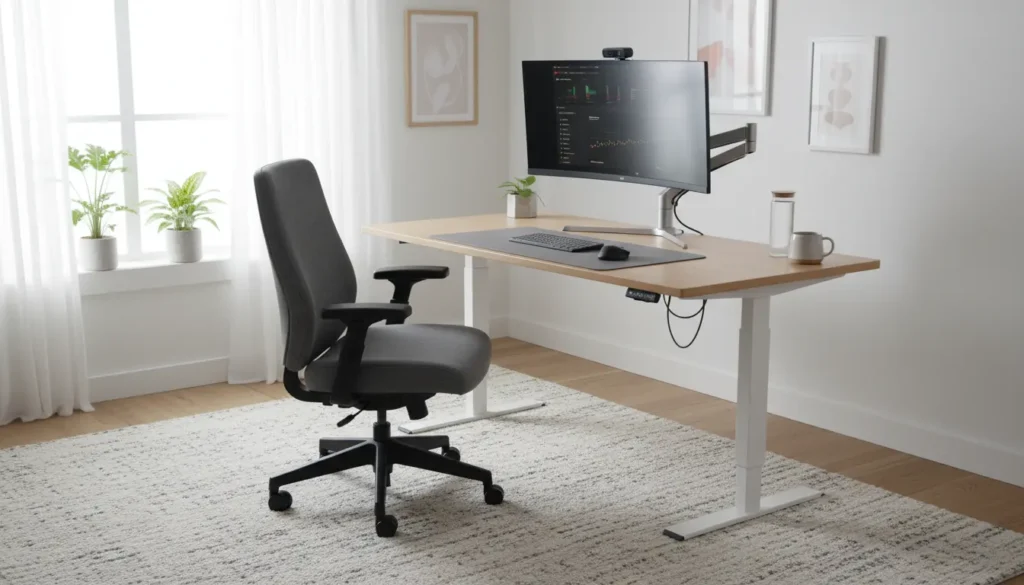
Home Office Ergonomics: Why It Matters
Good home office ergonomics reduces discomfort and helps maintain productivity. Small changes to your desk, chair, and monitor setup can prevent pain and fatigue.
This guide gives clear, actionable steps you can apply today to improve comfort and focus in a home workspace.
Basic Principles of Home Office Ergonomics
Ergonomics adapts the workspace to the person. The goal is neutral posture and minimal strain during extended work periods.
Focus on three areas: posture, equipment, and breaks. Each area offers simple adjustments that have a big impact.
Posture Tips for Home Office Ergonomics
Neutral posture keeps joints aligned and muscles relaxed. Aim for an upright spine, relaxed shoulders, and feet flat on the floor.
- Keep your head aligned with your torso; avoid leaning forward.
- Shoulders should be relaxed, not hunched.
- Wrists neutral while typing; forearms roughly parallel to the floor.
- Knees at or slightly below hip level for proper circulation.
Equipment Choices for Home Office Ergonomics
Choose furniture and accessories that support neutral posture. You do not need premium gear—just the right adjustments.
- Chair: Adjustable height, lumbar support, and armrests that allow relaxed shoulders.
- Desk: Height that allows elbows at 90 degrees while typing. Consider a sit-stand desk if you move frequently.
- Monitor: Top of screen at or slightly below eye level, about an arm’s length away.
- Keyboard and mouse: Positioned close to the body to avoid reaching.
Step-by-Step Setup for Better Home Office Ergonomics
Follow this quick checklist to set up your workspace. Adjust each item and then test by working for 15–30 minutes to confirm comfort.
1. Set Your Chair
Adjust seat height so your feet are flat on the floor and knees are at hip level or slightly lower. Support the lower back with built-in lumbar or a cushion.
Set armrests so your shoulders are relaxed and elbows can rest lightly while typing.
2. Position the Monitor
Place the monitor directly in front of you. The top of the screen should be at or just below eye level so your gaze slopes slightly downward.
Keep the monitor about an arm’s length away. Use a laptop stand or external monitor if necessary.
3. Keyboard and Mouse Placement
Keyboard should be low enough to keep wrists straight. Use a small wrist rest only for pauses, not while typing.
Keep the mouse next to the keyboard and avoid reaching. Consider an ergonomic mouse if you have wrist discomfort.
4. Lighting and Glare Control
Position lighting to avoid glare on screens. Use adjustable task lighting and reduce bright windows behind the screen.
Blue-light filters or warm screen settings help evening work; they do not replace good posture and breaks.
Daily Habits to Support Home Office Ergonomics
Ergonomics is more than equipment. Daily habits maintain the gains from a well-set workspace.
- Take short breaks every 25–60 minutes to stand, stretch, or change position.
- Use a timer or app to remind you to move and blink to prevent dry eyes.
- Alternate between sitting and standing if you have a sit-stand desk.
- Incorporate simple stretches: neck rolls, shoulder shrugs, and wrist stretches.
Common Problems and Quick Fixes
Many issues arise from a few consistent mistakes. Identify the common causes and apply quick corrections.
- Neck pain: Raise monitor or lower chair, and use a document holder at eye level.
- Lower back pain: Add lumbar support and avoid slouching; adjust chair depth.
- Wrist pain: Ensure keyboard is flat or slightly tilted away; consider a split keyboard.
- Eye strain: Increase font size, adjust brightness, and follow the 20-20-20 rule.
Alternating between sitting and standing for short periods can reduce back pain and boost circulation. Even 5 minutes every hour helps.
Case Study: Small Changes, Big Results
Case study: Maria is a freelance graphic designer who worked 8–10 hours daily at her kitchen table. She developed neck and lower back pain within months.
After a 30-minute setup session, she switched to an adjustable chair, raised her external monitor to eye level, and used a keyboard tray. She also set a timer to stretch every 45 minutes.
Within two weeks Maria reported less pain and higher focus. Her daily comfort improved and she no longer needed frequent breaks for discomfort.
Accessories Worth Considering for Home Office Ergonomics
Not all accessories are essential, but some deliver quick comfort improvements for common problems.
- Adjustable monitor arm — easy height and distance changes.
- Footrest — useful if feet do not reach the floor.
- Seat cushion or lumbar pillow — adds lower-back support.
- Anti-fatigue mat — helpful for standing periods.
Quick Checklist Before You Start Work
- Chair height set and lumbar supported.
- Monitor centered and top at eye level.
- Keyboard and mouse close and at wrist height.
- Lighting adjusted to reduce glare.
- Timer ready for regular breaks and stretches.
Final Tips for Lasting Home Office Ergonomics
Make adjustments gradually and keep what works. Regularly revisit your setup as your needs or tasks change.
Consult a physical therapist or ergonomist if you have persistent pain. Simple, consistent changes are often enough to prevent long-term issues.